Free 24-hour trial – no card required · Plans from just £3.29 a month · 7-day money-back guarantee · Start free

Tag: Streaming Devices

Streaming devices for IPTV: Firestick, Android TV boxes, MAG boxes, Smart TVs, phones, tablets and computers.

  • How to Watch IPTV on Windows PC and Mac (UK Guide 2026)

    How to Watch IPTV on Windows PC and Mac (UK Guide 2026)

    Your laptop or desktop computer is a great way to watch IPTV in the UK – whether you’re working at your desk, relaxing in the bedroom or connecting it to a bigger screen. In this guide you’ll learn how to watch IPTV on a Windows PC and a Mac, step by step.

    What You Need

    • A Windows PC or laptop, or a Mac, with up-to-date software
    • A stable connection – as a general guide, 10–15 Mbps for HD and 25 Mbps or more for 4K
    • Your IPTV login details: username, password and server URL (or a playlist link)
    • The IPTV player app your provider recommends for computers

    Don’t have an IPTV subscription yet? Try TV Stream UK free for 24 hours – no card required.

    Step 1: Update Your Computer

    • Windows: go to Settings → Windows Update and select Check for updates.
    • Mac: go to System Settings → General → Software Update.

    Step 2: Install Your IPTV Player

    Download the IPTV player app your provider recommends from the Microsoft Store (Windows), the Mac App Store (Mac) or the app’s official website. Open the installer and follow the on-screen steps. At TV Stream UK, we tell you which player to use for your computer when we send your login details.

    Safety tip: only download software from an official store, the developer’s own website or a link your provider has given you.

    Step 3: Add Your Login Details

    Open the player and add a new playlist or account. You can usually log in in one of two ways:

    • Login details – your username, password and server URL.
    • Playlist link – the playlist (M3U) link from your welcome message.

    On a computer you can simply copy and paste your details from your welcome email – the easiest way to avoid typing mistakes.

    Step 4: Start Watching

    Give the player a minute to load your live channels, films and series, then choose a category and start streaming. Double-click the video (or press F in many players) to go full screen.

    Watch on Your TV with an HDMI Cable

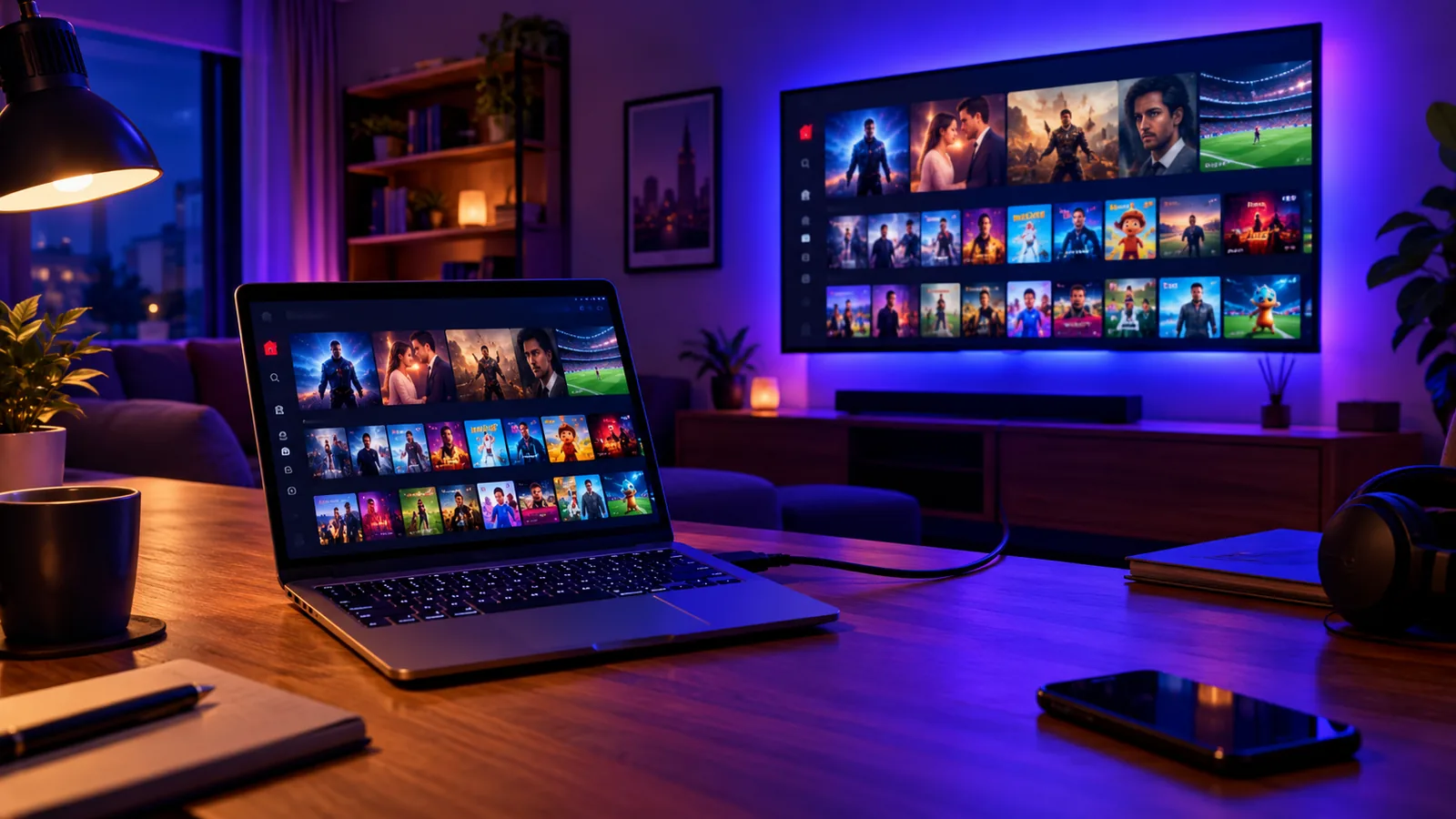
    Want the big-screen experience? Connect your laptop to your TV with an HDMI cable (some laptops and most recent Macs need a USB-C to HDMI adapter). Switch your TV to the right HDMI input, then open the IPTV player in full screen. For everyday TV watching, a dedicated device such as a Firestick or Android TV box is usually more convenient.

    Tips for Smooth Streaming on a Computer

    • Use an Ethernet cable if your computer has a network port (or a USB Ethernet adapter).
    • Close downloads and cloud backups while you watch – they compete for bandwidth.
    • Plug in your laptop – battery-saving modes can reduce performance.
    • Close browser tabs and apps you’re not using to free up memory.
    • Keep your player updated for the latest fixes.

    Still buffering? Read our guide on how to stop IPTV buffering.

    PC and Mac IPTV Troubleshooting

    ProblemQuick fix
    Player won’t installUpdate your operating system, then try again
    Mac says the app can’t be openedDownload it from the Mac App Store or the developer’s official site
    Login errorCopy and paste your details again, or contact support
    Picture keeps bufferingUse Ethernet and pause other downloads
    No picture on the TV via HDMICheck the TV input and your display settings

    Frequently Asked Questions

    Can I watch IPTV in a web browser?

    Some services offer browser playback, but a dedicated IPTV player usually gives a smoother picture and better features. Ask us which option suits your computer.

    Does it work on older laptops?

    Most laptops from the last few years handle HD streaming without any problem. Very old machines may struggle with 4K – if so, choose HD instead.

    What if I get stuck?

    Message our support team on WhatsApp or email nawfalelamri1@gmail.com. We’re available 24/7 and usually reply within minutes.

    IPTV Guides for Other Devices

    Watching on more than one screen? One TV Stream UK subscription works on all of these:

    Start Watching with TV Stream UK

    Get 32,000+ live channels, 200,000+ films and series and 99.9% uptime on your PC or Mac – with no auto-renewal and a 7-day money-back guarantee. Start your free 24-hour trial or compare our IPTV subscription plans. For other devices, see our IPTV setup guide.

  • How to Watch IPTV on Android TV and Android Boxes (UK Guide 2026)

    How to Watch IPTV on Android TV and Android Boxes (UK Guide 2026)

    Android TV, Google TV and Android TV boxes are some of the best devices for IPTV in the UK. They’re fast, they connect straight to your TV and they run almost every IPTV player app. In this guide you’ll learn how to watch IPTV on Android TV and Android boxes, step by step.

    What You Need

    • An Android TV, Google TV or Android TV box connected to the internet
    • A stable connection – as a general guide, 10–15 Mbps for HD and 25 Mbps or more for 4K
    • Your IPTV login details: username, password and server URL (or a playlist link)
    • The IPTV player app your provider recommends

    New to IPTV? Try TV Stream UK free for 24 hours – no card required.

    Step 1: Update Your Device

    Go to Settings → System → About → System update (the exact menu names vary slightly by brand) and install any update. Up-to-date software keeps apps fast and stable.

    Step 2: Install Your IPTV App from Google Play

    1. Open the Google Play Store on your TV or box.
    2. Search for the IPTV player app your provider recommends.
    3. Select Install and wait for it to finish, then select Open.

    If the app is in the Play Store, skip straight to Step 4.

    Step 3: If the App Isn’t in Google Play

    1. Install the free Downloader app from the Google Play Store.
    2. Go to Settings → Apps → Security & restrictions → Unknown sources and switch Downloader on.
    3. Open Downloader, enter the download link for your IPTV app and select Install.

    On some Google TV devices, the Unknown sources option only appears once Developer options are on. To turn them on, go to Settings → System → About and select Android TV OS build 7 times. Safety tip: only install apps from a link your provider has given you or from a source you trust.

    Step 4: Enter Your Login Details

    Open the IPTV app and choose how to log in – with your username, password and server URL, or with your playlist (M3U) link. Enter the details exactly as they appear in your welcome message.

    Step 5: Load Your Channels and Start Watching

    The first load can take a minute or two. Once your live channels, films and series appear, choose a category and start streaming. Tip: add the app to your home screen favourites so it’s always one click away.

    Tips for the Best Picture

    • Use an Ethernet cable – most Android TV boxes have a network port, and a wired connection is the most stable option.
    • Clear the app cache if the picture starts to freeze: Settings → Apps → your IPTV app → Clear cache.
    • Free up storage by uninstalling apps you never use.
    • Restart the box every few days to clear its memory.

    More help: read our guides on stopping IPTV buffering and the internet speed you need for IPTV.

    Android TV IPTV Troubleshooting

    ProblemQuick fix
    Unknown sources option is missingTurn on Developer options first (Android TV OS build × 7)
    App won’t installCheck Downloader is allowed under Unknown sources
    Login errorRe-enter your details carefully, or contact support
    App is slow or crashesClear the app cache and restart the box
    Picture keeps bufferingSwitch to Ethernet or 5 GHz Wi-Fi

    Frequently Asked Questions

    Is an Android TV box better than a Firestick for IPTV?

    Both work well. Android TV boxes often have more storage and an Ethernet port built in, while a Firestick is smaller and cheaper. If you have a Firestick, follow our Firestick IPTV guide instead.

    Does this work on Google TV?

    Yes. Google TV is built on Android TV, so the steps are the same. Menu names can differ slightly between brands.

    What if I get stuck?

    Message our support team on WhatsApp or email nawfalelamri1@gmail.com. We’re available 24/7 and usually reply within minutes.

    IPTV Guides for Other Devices

    Watching on more than one screen? One TV Stream UK subscription works on all of these:

    Start Watching with TV Stream UK

    Enjoy 32,000+ live channels, 200,000+ films and series and 99.9% uptime on your Android TV or box – with no auto-renewal and a 7-day money-back guarantee. Start your free 24-hour trial or compare our IPTV subscription plans. For other devices, see our IPTV setup guide.

  • How to Watch IPTV on iPhone and iPad (UK Guide 2026)

    How to Watch IPTV on iPhone and iPad (UK Guide 2026)

    Your iPhone or iPad is one of the easiest ways to watch IPTV in the UK – at home, in the garden or on the go. All you need is an IPTV player app from the App Store and your login details. This step-by-step guide shows you how to watch IPTV on iPhone and iPad in just a few minutes.

    What You Need

    • An iPhone or iPad with an up-to-date version of iOS or iPadOS
    • A stable Wi-Fi connection – as a general guide, 10–15 Mbps for HD
    • Your IPTV login details: username, password and server URL (or a playlist link)
    • The IPTV player app your provider recommends

    Don’t have an IPTV subscription yet? Try TV Stream UK free for 24 hours – no card required.

    Step 1: Update Your iPhone or iPad

    Apps run best on the latest software, and some won’t install on older versions. Go to Settings → General → Software Update and install any update that’s available.

    Step 2: Install Your IPTV Player App

    1. Open the App Store.
    2. Tap Search and type the name of the IPTV player app your provider recommends.
    3. Tap Get, then confirm with Face ID, Touch ID or your Apple Account password.

    At TV Stream UK, we tell you which app to use for your iPhone or iPad when we send your login details.

    Step 3: Add Your Login Details

    Open the app and choose to add a new playlist or account. Most apps give you two options:

    • Login details – enter your username, password and server URL exactly as they appear in your welcome message.
    • Playlist link – paste the playlist (M3U) link you were sent.

    Tip: copy and paste your details from your welcome message instead of typing them – it avoids the small typos that cause most login errors.

    Step 4: Load Your Channels and Start Watching

    Save your details and give the app a minute to load your live channels, films and series. Then pick a category and start streaming. Turn your phone sideways for full-screen viewing.

    Watch on Your TV with AirPlay

    If your IPTV app supports AirPlay, you can send what you’re watching to an Apple TV or an AirPlay-compatible Smart TV. Make sure both devices are on the same Wi-Fi network, then tap the AirPlay icon in the app (or use Screen Mirroring from Control Centre). For the most stable picture on a big screen, a dedicated app on your TV or a Firestick is usually better.

    Tips for Smooth Streaming on iPhone and iPad

    • Use Wi-Fi where you can – streaming video can use several gigabytes of mobile data per hour in HD.
    • Connect to 5 GHz Wi-Fi and stay reasonably close to your router.
    • Close apps you’re not using by swiping them away in the app switcher.
    • Turn off Low Power Mode while streaming, as it can limit performance.
    • Keep the app updated through the App Store.

    Still seeing a spinning wheel? Follow our guide on how to stop IPTV buffering.

    iPhone and iPad IPTV Troubleshooting

    ProblemQuick fix
    App won’t installUpdate iOS or iPadOS, then try again
    Login errorCopy and paste your details again, or contact support
    Channels won’t loadSwitch Wi-Fi off and on, then reopen the app
    Picture keeps bufferingMove closer to the router or use 5 GHz Wi-Fi
    No soundCheck the silent switch and volume, then restart the app

    Frequently Asked Questions

    Can I watch IPTV on mobile data?

    Yes, as long as your signal is strong enough. Just keep an eye on your data allowance, as video streaming uses a lot of data.

    Does it work on older iPhones and iPads?

    Most IPTV apps need a fairly recent version of iOS or iPadOS. If an app won’t install, check for a software update or ask us for an alternative app.

    What if I get stuck?

    Message our support team on WhatsApp or email nawfalelamri1@gmail.com. We’re available 24/7 and usually reply within minutes.

    IPTV Guides for Other Devices

    Watching on more than one screen? One TV Stream UK subscription works on all of these:

    Start Watching with TV Stream UK

    Get 32,000+ live channels, 200,000+ films and series and 99.9% uptime on your iPhone and iPad – with no auto-renewal and a 7-day money-back guarantee. Start your free 24-hour trial or compare our IPTV subscription plans. For other devices, see our IPTV setup guide.

  • How to Install IPTV on Firestick: Step-by-Step UK Guide (2026)

    How to Install IPTV on Firestick: Step-by-Step UK Guide (2026)

    The Amazon Fire TV Stick is the most popular way to watch IPTV in the UK. It’s affordable, plugs straight into your TV’s HDMI port and runs most IPTV player apps smoothly. In this guide you’ll learn exactly how to install IPTV on a Firestick, step by step – it usually takes about 10 minutes, and you don’t need any technical knowledge.

    What You Need Before You Start

    • An Amazon Fire TV Stick (any recent model) connected to your TV
    • A stable internet connection – as a general guide, 10–15 Mbps for HD and 25 Mbps or more for 4K
    • Your IPTV login details: username, password and server URL (or a playlist link)
    • About 10 minutes

    Don’t have an IPTV subscription yet? You can try TV Stream UK free for 24 hours – no card required – and use this guide to set it up.

    Step 1: Update Your Firestick

    An up-to-date Firestick runs apps faster and more reliably. Go to Settings → My Fire TV → About and select Check for Updates. If an update is available, install it and let the Firestick restart.

    Step 2: Check Whether Your IPTV App Is in the Amazon Appstore

    From the Firestick home screen, go to Find → Search and type the name of the IPTV player app your provider recommends. If it appears, select it, choose Get or Download, and skip straight to Step 6. If it isn’t in the Appstore, follow Steps 3 to 5.

    At TV Stream UK, we tell you which app to use for your device when we send your login details.

    Step 3: Turn On Developer Options

    Newer Firesticks hide the Developer Options menu. To show it:

    1. Go to Settings → My Fire TV → About.
    2. Highlight your device name (for example, Fire TV Stick 4K) and press the select button on your remote 7 times.
    3. You’ll see a message saying you are now a developer. Press Back and Developer Options will now appear in the My Fire TV menu.

    Step 4: Install the Downloader App

    Downloader is a free app in the Amazon Appstore that lets you download apps from a web link. Go to Find → Search, type Downloader, select it and choose Get or Download.

    Step 5: Allow Downloader to Install Apps

    Go to Settings → My Fire TV → Developer Options → Install unknown apps, select Downloader and switch it On. Now open Downloader, type the download link for your IPTV player app into the address box, select Go and choose Install when prompted.

    Safety tip: only install apps from a link your provider has given you or from a source you trust. Once your app is installed, you can switch Install unknown apps back off.

    Step 6: Enter Your IPTV Login Details

    Open your IPTV player app. Most apps offer two ways to log in:

    • Login details – enter your username, password and server URL exactly as they appear in your welcome message.
    • Playlist link – paste or type the playlist (M3U) link you were sent.

    Typing long details with a remote can be fiddly. Take your time – a single wrong character is the most common reason a login fails.

    Step 7: Load Your Channels and Start Watching

    The first time you log in, the app may take a minute or two to load your live channels, films and series. Once it’s finished, choose a category and start streaming. Tip: move the app to the front of your Firestick home screen so it’s always one click away.

    Tips for Smooth Streaming on Firestick

    • Use a wired connection – an Ethernet adapter for your Firestick gives the most stable picture.
    • Use 5 GHz Wi-Fi if you can’t use a cable, and keep the router close to the TV.
    • Clear the app cache regularly: Settings → Applications → Manage Installed Applications.
    • Close apps you’re not using and uninstall ones you never open – Firesticks have limited memory.
    • Restart your Firestick once a week: Settings → My Fire TV → Restart.

    Still seeing a spinning wheel? Read our full guide on how to stop IPTV buffering.

    Firestick IPTV Troubleshooting

    ProblemQuick fix
    Developer Options is missingPress your device name in About 7 times
    App won’t installCheck Install unknown apps is on for Downloader
    Login errorRe-enter your details carefully, or contact support
    Channels won’t loadRestart the Firestick and your router
    Buffering or freezingClear the app cache and use Ethernet or 5 GHz Wi-Fi

    Frequently Asked Questions

    Which Firestick is best for IPTV?

    Any recent Fire TV Stick will run IPTV. Newer, more powerful models such as the 4K versions generally load channels faster and handle 4K content better than older sticks.

    Can I use the same subscription on another device?

    You can install your IPTV app on other devices too, such as a Smart TV or phone. Message our team and we’ll explain how to set up each device.

    Do I need a VPN on my Firestick?

    A VPN isn’t required to install or use an IPTV app. Some people choose one for extra privacy, but it can reduce your speed, so test your connection if you use one.

    IPTV Guides for Other Devices

    Watching on more than one screen? One TV Stream UK subscription works on all of these:

    Get Set Up with TV Stream UK

    TV Stream UK gives you 32,000+ live channels, 200,000+ films and series and 99.9% uptime on your Firestick – with no auto-renewal and a 7-day money-back guarantee. Start your free 24-hour trial, compare our IPTV plans or message us on WhatsApp and we’ll help you install everything. For other devices, see our IPTV setup guide.

  • How to Watch IPTV on Samsung and LG Smart TVs (UK Guide 2026)

    How to Watch IPTV on Samsung and LG Smart TVs (UK Guide 2026)

    If you have a Samsung or LG Smart TV, you may not need a Firestick or any extra box to watch IPTV. Both brands have their own app stores, so you can install an IPTV player app directly on the TV and start streaming in minutes. This guide shows you how to watch IPTV on a Samsung Smart TV and an LG Smart TV, step by step.

    Before You Start

    • Your Smart TV connected to the internet (Ethernet is best, strong Wi-Fi works too)
    • Your IPTV login details: username, password and server URL (or a playlist link)
    • The name of the IPTV player app your provider recommends for your TV

    At TV Stream UK, we send the recommended app for your TV along with your login details. Don’t have an account yet? Start a free 24-hour trial – no card required.

    Update Your TV Software First

    Apps run best on up-to-date software, and some apps won’t appear in the store on older firmware.

    • Samsung: go to Settings → Support → Software Update → Update Now.
    • LG: go to Settings → All Settings → Support (or General → About This TV on some models) and select Software Update.

    How to Watch IPTV on a Samsung Smart TV

    1. Press the Home button on your Samsung remote and open Apps.
    2. Select the search (magnifying glass) icon and type the name of your IPTV player app.
    3. Choose the app and select Install. When it’s finished, select Open.
    4. Enter your username, password and server URL – or your playlist link – exactly as they appear in your welcome message.
    5. Wait a minute or two while your channels, films and series load, then start watching.

    Tip: to keep the app on your home screen, highlight it in the Apps menu, press and hold the select button and choose Add to Home.

    How to Watch IPTV on an LG Smart TV

    1. Press the Home button on your LG remote and open the LG Content Store (called Apps on newer models).
    2. Select Search and type the name of your IPTV player app.
    3. Choose the app and select Install. Once it’s installed, select Launch.
    4. Enter your login details or playlist link.
    5. Let the app load your content, then pick a category and start streaming.

    What If Your TV Doesn’t Have a Suitable App?

    Older Smart TVs sometimes have fewer apps available, or run them slowly. The easiest fix is to plug a streaming stick into a spare HDMI port. An Amazon Fire TV Stick is affordable and runs most IPTV apps well – follow our guide on how to install IPTV on a Firestick. An Android TV box is another good option.

    Tips for the Best Picture on Your Smart TV

    • Use an Ethernet cable – most Smart TVs have a network port, and a wired connection is far more stable than Wi-Fi.
    • Fully restart the TV now and then. Many TVs only go into standby, so unplug it for 30 seconds to clear the memory.
    • Close other apps running in the background before you start streaming.
    • Check your speed – see our guide to what internet speed you need for IPTV.

    Smart TV IPTV Troubleshooting

    ProblemQuick fix
    App isn’t in the storeUpdate your TV software, or use a Firestick
    Login errorRe-enter your details carefully, or contact support
    App is slow or crashesUnplug the TV for 30 seconds and reopen the app
    Picture keeps bufferingSwitch to Ethernet – see our buffering fixes
    No soundCheck the TV’s sound output and the app’s audio settings

    Frequently Asked Questions

    Do I need a box to watch IPTV on a Smart TV?

    Not usually. Most recent Samsung and LG Smart TVs can run an IPTV app directly. You only need a stick or box if your TV doesn’t have a suitable app or runs it slowly.

    Can I watch IPTV in 4K on my Smart TV?

    If your TV and the content support 4K, you’ll need a fast, stable connection – as a general guide, 25 Mbps or more. A wired connection helps a lot.

    What if I get stuck?

    Message our support team on WhatsApp or email nawfalelamri1@gmail.com. We’re available 24/7 and usually reply within minutes.

    IPTV Guides for Other Devices

    Watching on more than one screen? One TV Stream UK subscription works on all of these:

    Start Watching with TV Stream UK

    Get 32,000+ live channels, 200,000+ films and series and 99.9% uptime on your Samsung or LG Smart TV – with no auto-renewal and a 7-day money-back guarantee. Start your free 24-hour trial or compare our IPTV subscription plans. For every other device, see our IPTV setup guide.